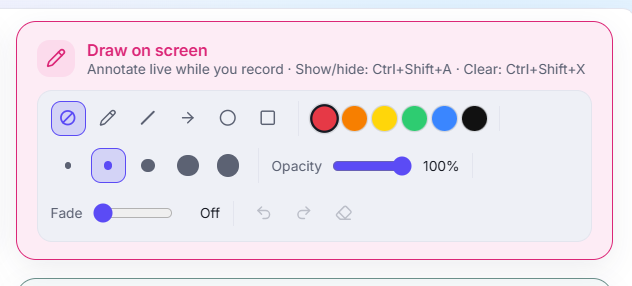
A screen recording usually means narrating over the top and hoping the viewer looks at the right spot. Doculigent's Draw on screen tool instead lets you mark it up live — circle a chart, drop an arrow, highlight a line — right on screen as you talk, without cutting the recording or switching to a separate tool.
The toolbar gives you a pen, line, arrow, circle, and rectangle, each with its own color and stroke-size picker, plus an opacity slider and an optional fade so older strokes ease out instead of cluttering the screen. Undo, redo, and a one-click clear are right there too, and everything is keyboard-driven: Ctrl+Shift+A shows or hides the toolbar, Ctrl+Shift+X clears the screen, so you never have to reach for the mouse mid-sentence.
Annotating happens live, in the same pass as the rest of the capture — screen and camera overlay recorded together at full resolution, with your markup drawn directly on top. There's no extra editing pass required just to point at something.
Because annotation is captured as part of the take, it shows up immediately for anyone watching later — no waiting on an edit before the callouts that mattered while you were explaining something are visible in the final video.